
The best way to stay up to date with all notifications from the club is to install the Playmetrics app.
Notification Settings
Once you have the app installed you can adjust your notification settings by:
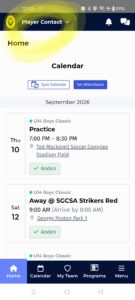
- Press the “Player Contact” link in the upper menu:
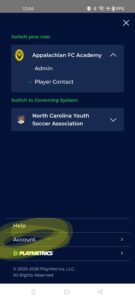
- On the following screen press the “Account” link toward the bottom:
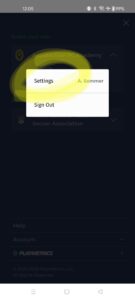
- Next, press the “Settings” link in the popup:
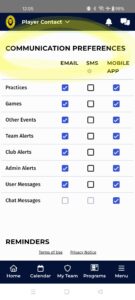
- Finally, scroll down until you find the “Communication Preferences” section and adjust the settings as needed:
Adding a Player Contact
Player contacts will receive all notifications, chats, etc from coaches and staff. To add a new player contact, in the Playmetrics app, do the following:
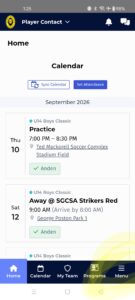
- Press the “Menu” button in the lower right-hand corner:
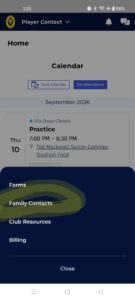
- Press the “Family Contacts” link in the slide up menu:
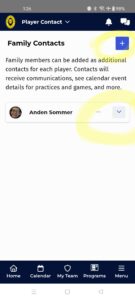
- On the next screen press the player name to see current contacts and press the “+” button in the upper right to open additional contact form:
- Fill out the “Add Family Contact” form and click the “Invite Contact” button at the bottom:
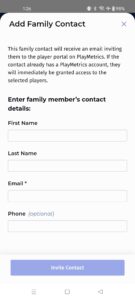
Once they’ve accepted the invite you will see the new contact listed for the player.